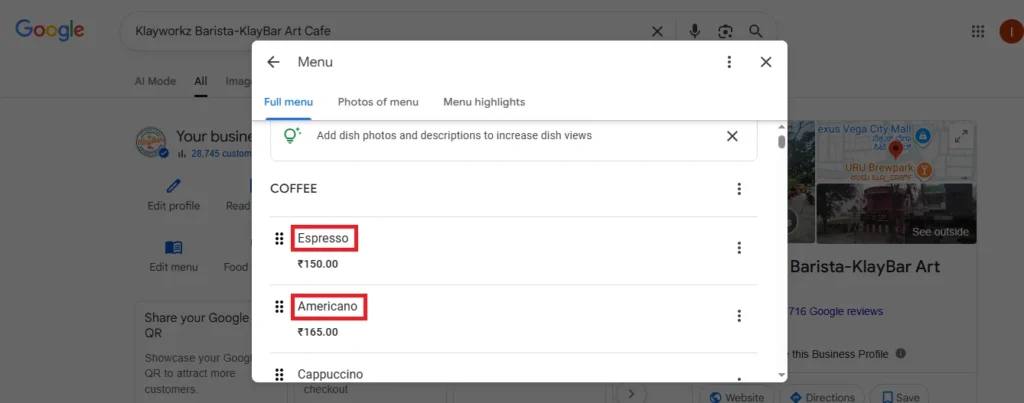
The Edit Menu section of your Google Business Profile (GBP) allows businesses—especially restaurants, cafes, salons, and service providers—to clearly showcase their offerings with names, categories, pricing, descriptions, and visuals. A well-structured menu improves your brand’s visibility on Google Search and Maps, increasing customer trust and click-through rate.
What Is the “Edit Menu”?
The “Edit Menu” is a dynamic section that enables businesses to list products or services they offer, along with their descriptions, prices, and categories. This not only informs potential customers about your services upfront but also plays a crucial role in local SEO in digital marketing. It’s accessible via the NMX (New Merchant Experience) panel in Google Business and can be updated at any time.
Why Editing Your Menu Is Important
A well-maintained Google menu provides accurate, organized information that helps potential customers make decisions without needing to visit your website or call your business. Whether you offer food, salon treatments, or digital services, your menu helps you:
Rank better in local search results
Build trust and transparency
Drive more bookings or orders
Offer a better mobile browsing experience
Example: If you run a restaurant and recently added a new dish like “Korean Hot Pot,” or if you’re a salon introducing “Keratin Hair Treatment,” updating your menu ensures people searching for those specific services can discover your business easily.
What You Can Do in the “Edit Menu” Section
1. Add New Items to the Menu
You can include new offerings—whether food items or services—whenever you update your business.
These items can be organized into custom categories like “Facial Treatments,” “Pizzas,” or “Web Design Services.”
Example (Salon): Category: Hair Treatments Item: Nanoplastia Hair Treatment Description: Chemical-free hair straightening that adds shine and strength. Price: Starts at ₹3,999
2. Edit Existing Items
You can modify service names, pricing, descriptions, or categories to reflect changes in offerings or costs.
Keeping this section updated reduces customer confusion and builds a more professional profile.
3. Remove Unavailable Items
You can remove discontinued offerings to prevent customer disappointment.
For seasonal items or short-term services, make sure to clean up your menu after the offer ends.
Example: A mango milkshake may only be available during summer, or a festival makeup combo might be a limited-time service.
Tabs in the Edit Menu Section
The menu editor in Google has three primary tabs, each serving a specific purpose:
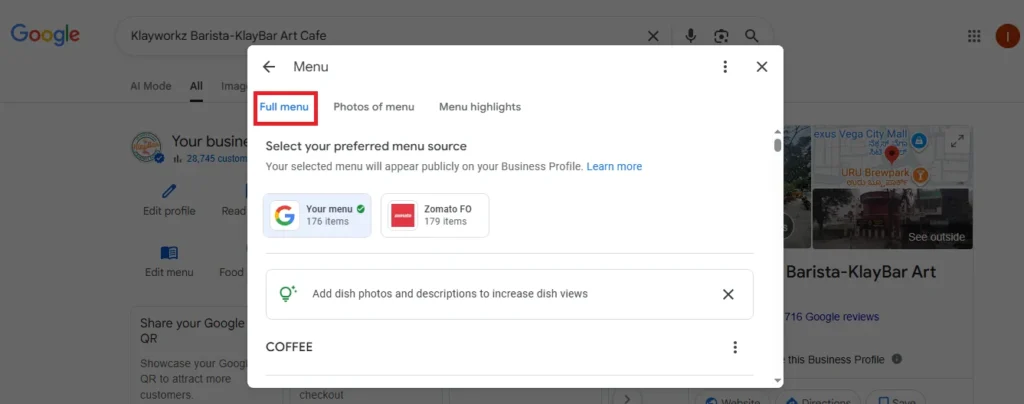
Full Menu
This is the structured format where you add or update individual items, their prices, and categorize them.
Each item can include:
Service or Dish Name
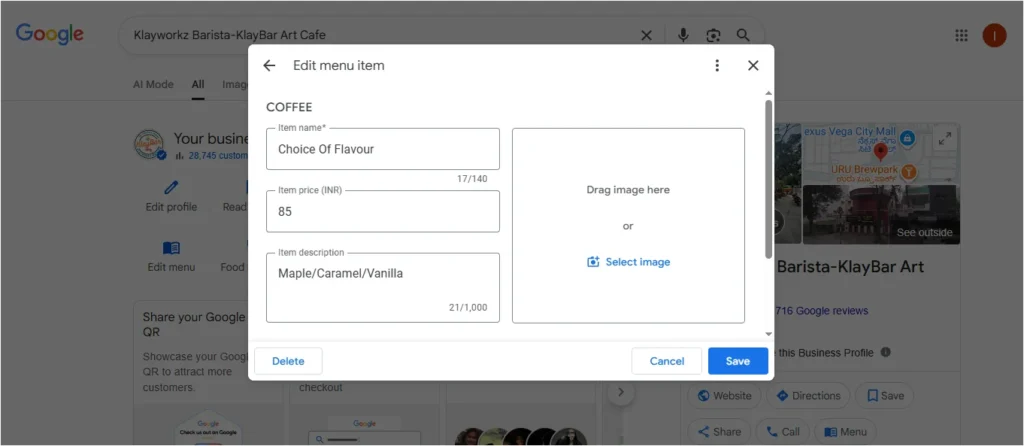
Description (up to 300 characters)
Category name
Purpose: To give customers a quick and clear idea of everything your business offers, in an organized and filterable format.
Photos of Menu
Upload real images of your menu card, service list, or item photographs.
Helps customers who prefer visual reference, and supports non-text-based discovery.
Purpose:
To visually support your offerings and encourage clicks, calls, or bookings.
Tips:
Use clear, high-resolution images.
Ensure the image has proper lighting and readable text.
Add photos regularly if your menu changes often.
Example Use Case: A salon may upload a photo of their price card listing “Hair Smoothening – ₹2,999” or a restaurant uploads its breakfast combo image.
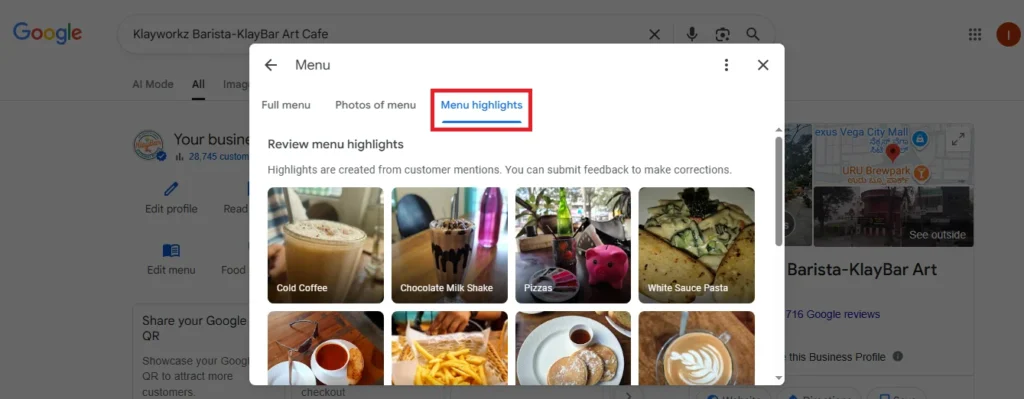
Menu Highlights
Add or promote popular items, trending dishes, or limited-time offers here.
These highlighted items appear first to users browsing your menu on Google.
Purpose: To draw attention to high-conversion or signature items that bring you the most business.
To clearly communicate what services or products your business offers
To match search intent, helping Google show your profile in relevant search results
To improve customer experience by giving them key information instantly
To increase conversions by listing prices, descriptions, and categories right from the search results
To support SEO marketing and ecommerce digital marketing through keyword-rich entries
Key Features of the Menu Editor in Google Business Profile
Maintaining an accurate and well-structured menu in your Google Business Profile (GBP) is essential for customer engagement and local SEO. Here’s a detailed breakdown of each feature in the “Edit Menu” section:
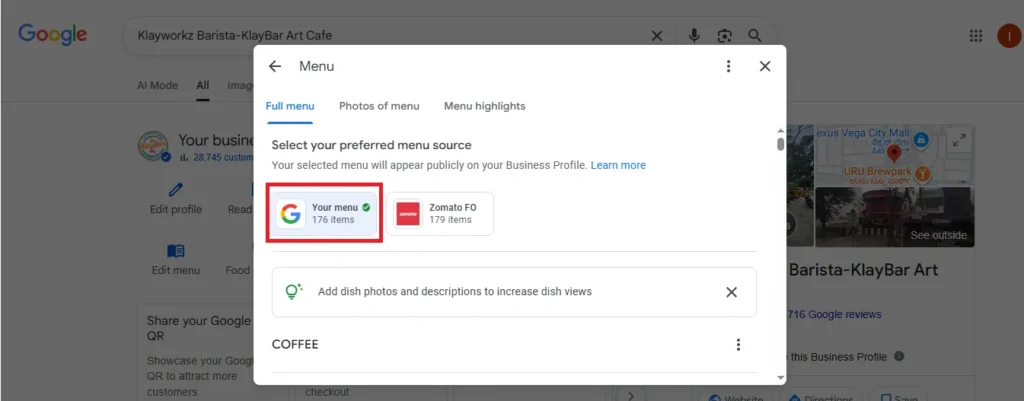
1. Preferred Menu Source
You can choose between:
“Your Menu” – manually entered and maintained by the business owner.
Third-party menus – pulled from platforms like Zomato or Swiggy.
Recommended: Use “Your Menu” for complete control over your content, pricing, and local SEO.
Example: A coffee shop that added 176 custom menu items under “Your Menu” retains total visibility and updates directly from the dashboard.
Categorization of Menu Items
Group items under clear categories based on service types or product offerings.
Helps users navigate easily and increases the relevance of your GBP in Google searches.
Example:
For a salon: “Hair Coloring”, “Facials”, “Hair Spa” For a restaurant: “Breakfast”, “Lunch Combos”, “Biryani Specials”
3. Descriptions for Each Item
Add up to 300 characters to describe each item or service.
Use local SEO keywords that match what people are searching for.
Focus on benefits, ingredients, process, or key outcomes.
Character Limit: Maximum 1,000 characters per item description.
Example: “Keratin Treatment – Smoothens frizz, strengthens strands, restores hair shine for up to 3 months.”
Tip: Avoid promotional words like “best” or “number one”; stick to informative descriptions.
Enter the Amount in Item Price (INR)
The Item Price (INR) field in your Google Business Profile is where you enter the price of each menu item in Indian Rupees. For local SEO services and effective digital marketing strategies, it’s crucial to enter the numeric value only — avoid using currency symbols like ₹ or commas (e.g., enter 150, not ₹150 or 1,500).
By correctly adding prices, you can improve SEO marketing efforts and increase visibility in local SEO searches, helping potential customers make informed decisions before visiting your business.
5. Add Real Images
Upload authentic photos of your dishes, services, or physical menu boards.
Enhances trust and improves user engagement on your profile.
Avoid using stock images – Google prefers original photos.
Example: A scanned image of your laminated breakfast menu or a dish photo of “Ghee Roast Dosa”.
6. Improves Local SEO
Each menu item indexed with proper keywords contributes to search visibility.
Updated menus help your business stay relevant in evolving local searches.
Example: When someone searches “Best dosa in Tellapur”, a listed item titled “Masala Dosa – ₹89 – Crispy dosa served with chutneys” can boost ranking.
Tip: Review and refresh items every few weeks based on performance or seasonality.
Keep Your Menu Updated Regularly
Add or remove items as per availability or new offerings.
Optimize for keywords that match customer search intent.
Use Google Insights to check which menu items are getting views.